
RSS can be installed on Windows versions of Excel, starting from Excel 2007. The installer detects the user's Excel version and installs the appropriate RSS files. Please review the instructions below, especially the information in Tab 3 ("Excel File Formats") of the installation workbook.
Installation Steps:
- Preparation:
Save and close all open Excel workbooks. If you haven't obtained a User ID or Password, please do so before installation at ryderscott.com/reservoir-solutions. - Download & Unzip:
Download the ResSol_RSC.zip file and unzip it for installation. - Open Installation File:
In Excel, open Install_ResSol_RSC.xlsm. You may see a prompt about Macros:- Excel 2007: Click "Options…" and select "Enable this content."
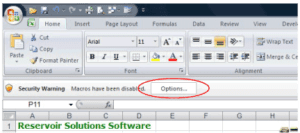
- Excel 2010 & Later: Click "Enable Content."
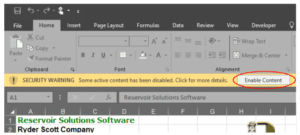
- Excel 2007: Click "Options…" and select "Enable this content."
- Installation Prompt:
A welcome screen will appear. Click "Install NOW!" to proceed or "Cancel" to review the materials. You can resume installation later by clicking "Install NOW!" on Tab 1. - Terms & Password:
Review the terms and conditions. Enter the Password obtained from www.ryderscott.com. - Program Selection:
Choose to install all or select programs. Note that some programs require the Reservoir Solutions Modules, which will be installed automatically. Note: If reinstalling, ensure that all desired programs are checked, or else unselected programs will be removed. - Restart Excel:
After installation, restart Excel to apply changes. - Uninstallation:
To remove RSS, open the installer, select "Install" with no options checked, and all RSS programs will be uninstalled.